
XR & AI Portal Vol.27 - Getting EXR Image to Create Morphing Moves in RCP
💡 insight on XR & AI this week


【Puffinwalker’s XR Portal】
Getting EXR Image to Create Morphing Moves in RCP
Hey there, folks! When you're working on VisionPro projects, you've probably crossed paths with RealityComposerPro at some point. Since RealityComposerPro 2.0 now lets you do some basic animations, like moving objects around and changing their size, also supports importing rigging animated models through XCode.
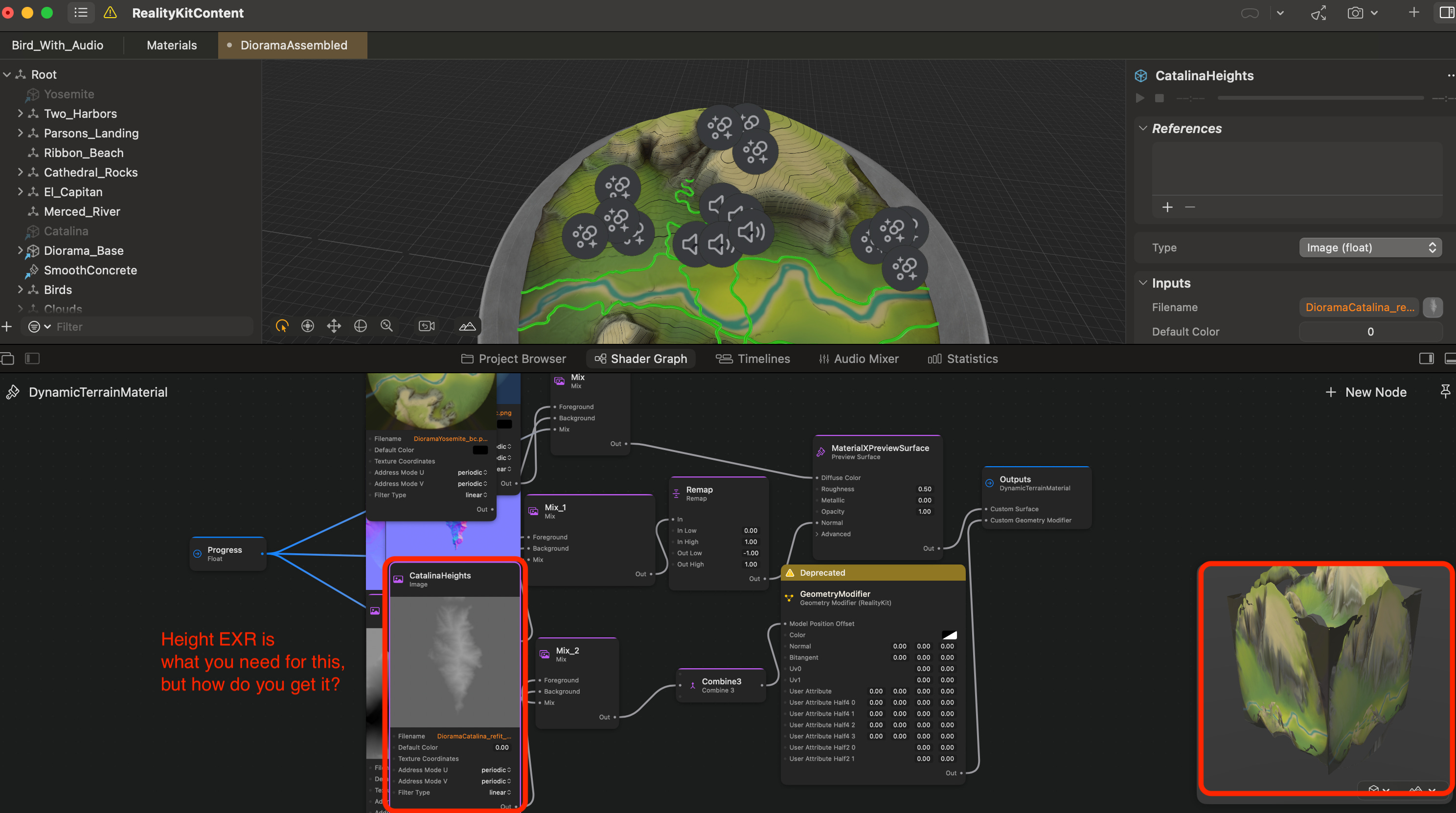
But what if you're into morphing animations? You know, like that cool transition from a sphere to a cube you made in Blender using shape keys. How do you get that into your project and into RealityComposerPro? Well, Blender 4.2 can export shape key animations, but it's not always a smooth ride.

One way to tackle this is by using the Geometry Modifier that was introduced at WWDC23 (the official example was switching between two terrains). All the other image types, like normal, AO, diffuse, and so on, can be baked and exported from Blender, which is also great for exporting materials made with shaders in Blender.
But how do you get that key image, containing height information in EXR format?
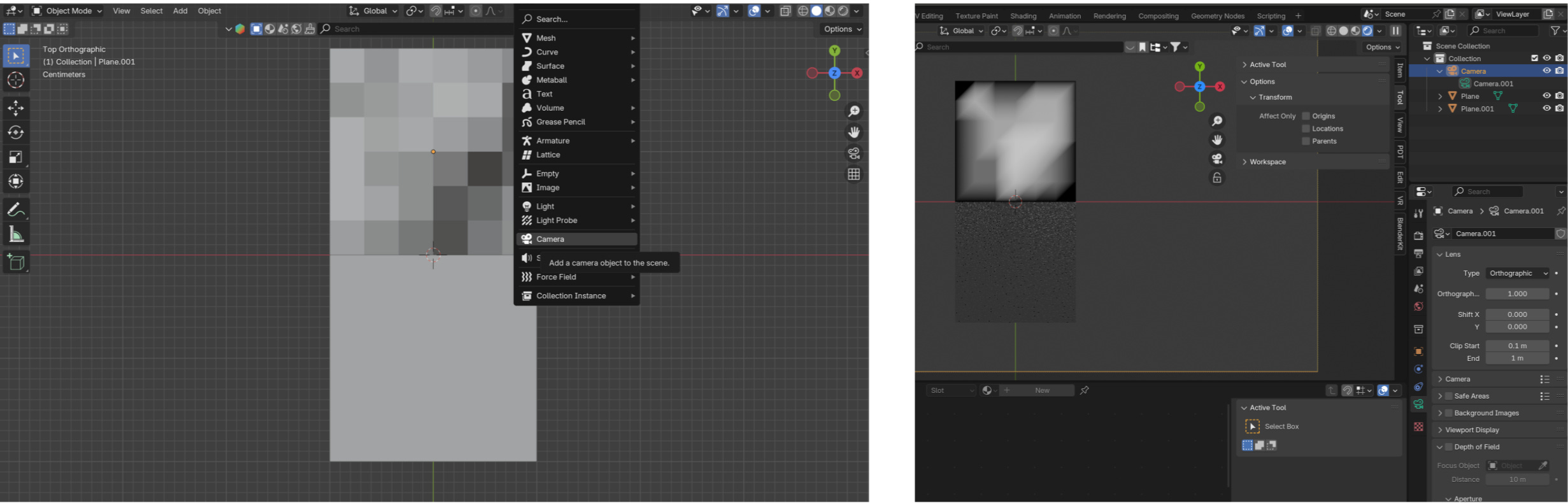
You can actually get it through render in Blender (not baking though). Here's how:
Camera Render View: Place a camera above the model you want to export the height map from. Make sure it's an orthographic camera to avoid perspective and angles. Set your render view accordingly.
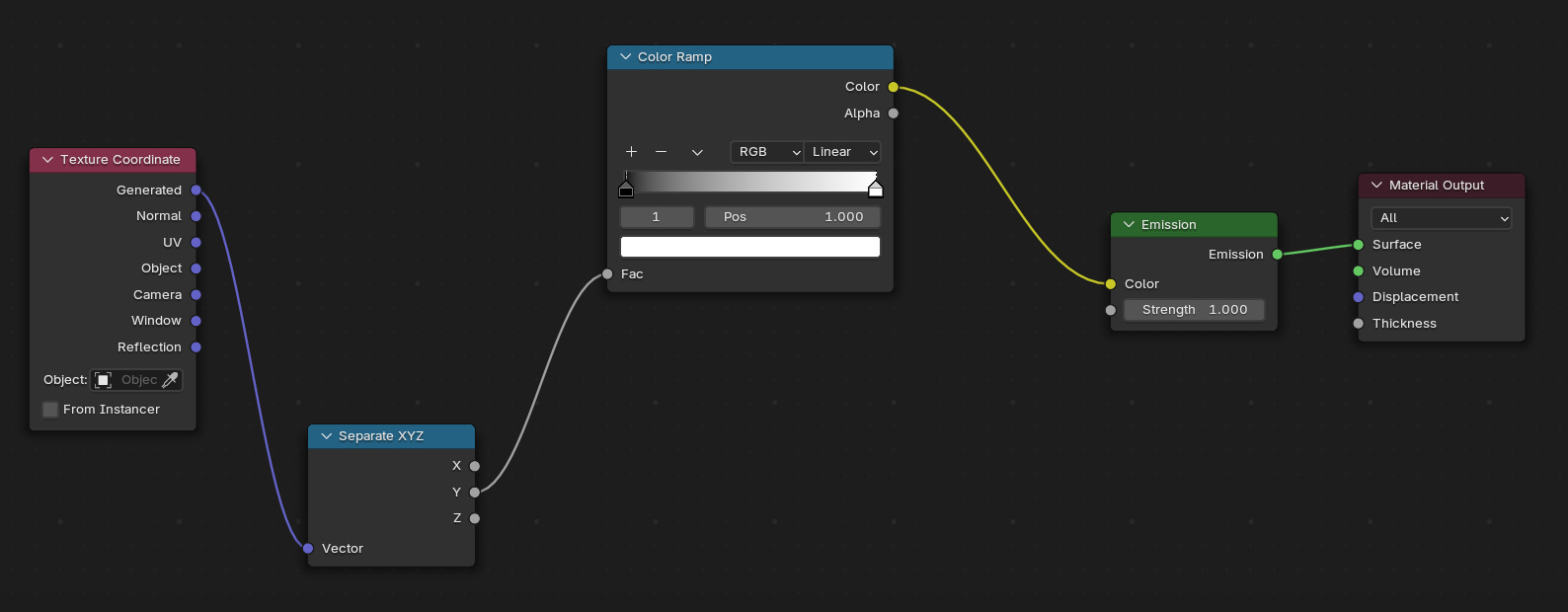
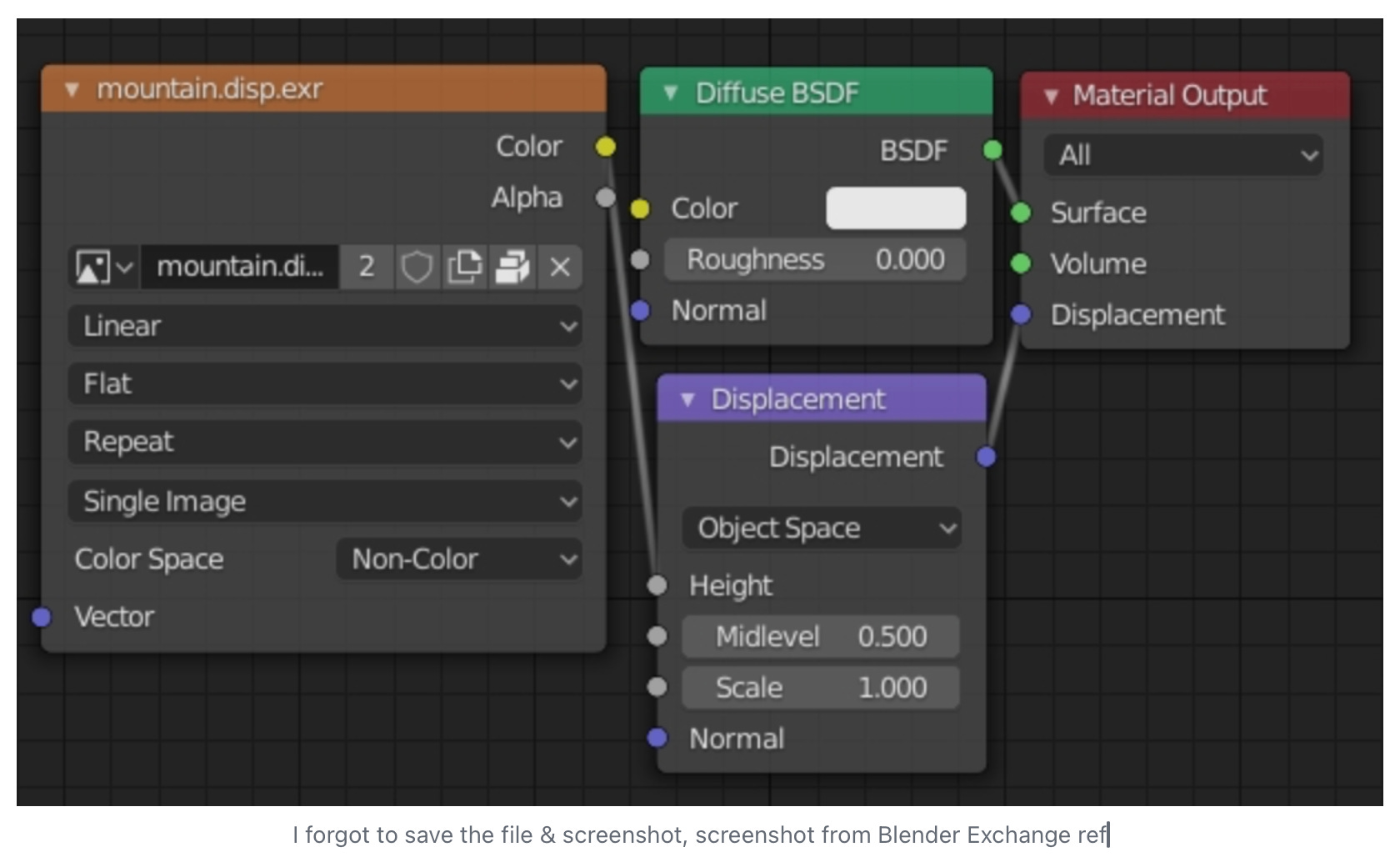
Create Render Material: Create a new material as below to render height information and apply it to your model (I'm contecting Y axis to the Color Ramp input cause my model height changes on Y axis, link the output axis as your model height changes).
Render OpenEXR & Save: In the render settings, set a suitable sample size (you can keep it low) and set the render output to OpenEXR. With the camera, material, and render settings all set, you're good to go. The result will be the height map EXR you need for the GeometryModifier, just like the black & white image at bottom.
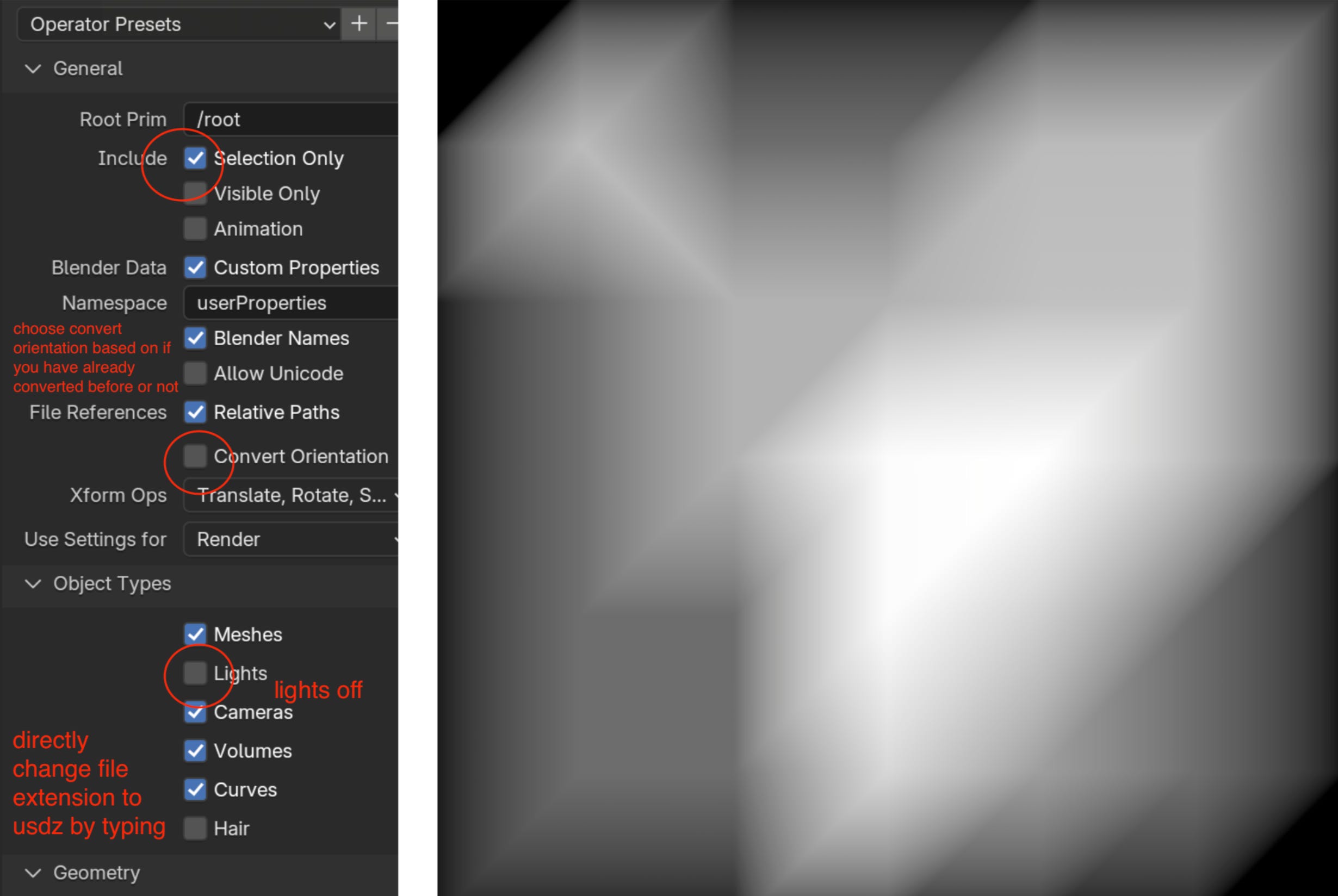
Export Plane Model: Then you'll export the plane model (same edit points so they can match later) as usdz with settings below to use it in RealityComposerPro later. Remember to delete the lights or just delete the world in Blender before exporting so no lighting issues would come up later. The
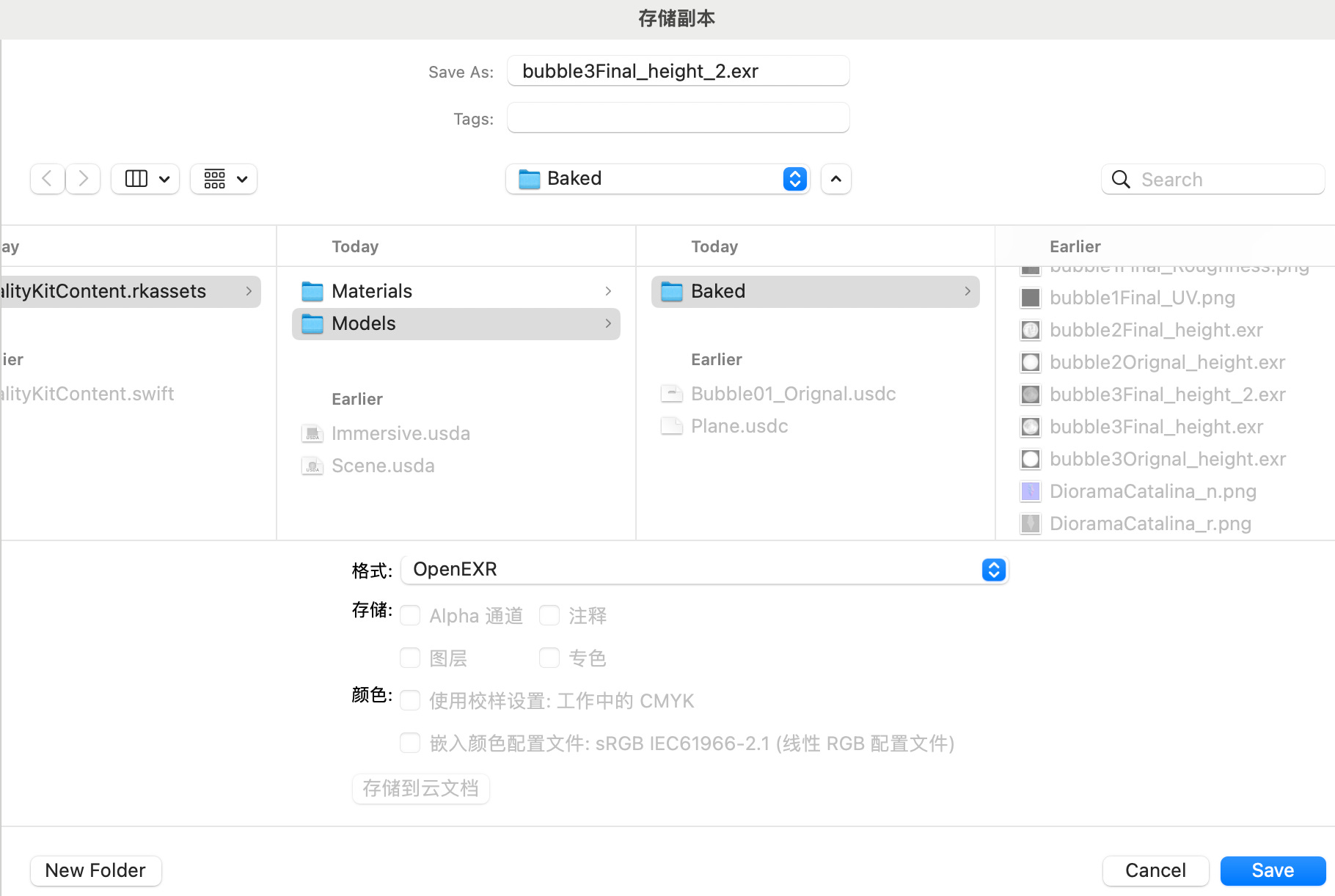
And of course, you can still tweak it in software like Photoshop if you find something little bit off and save it as original format.
And if you want to be sure before using it in RealityComposerPro, also feel free to set a new material in Blender on a plane to test it out.
Now we move to the Apple system.
Import the plane with the same edit points(so they could match) into RealityComposerPro, set up the shadergraph material, connect the EXR image to the Model Position Offset Node in GeometryModifier, and set the appropriate axis for the height (usually the Y-axis). And voilà, your plane will have a height deformation.
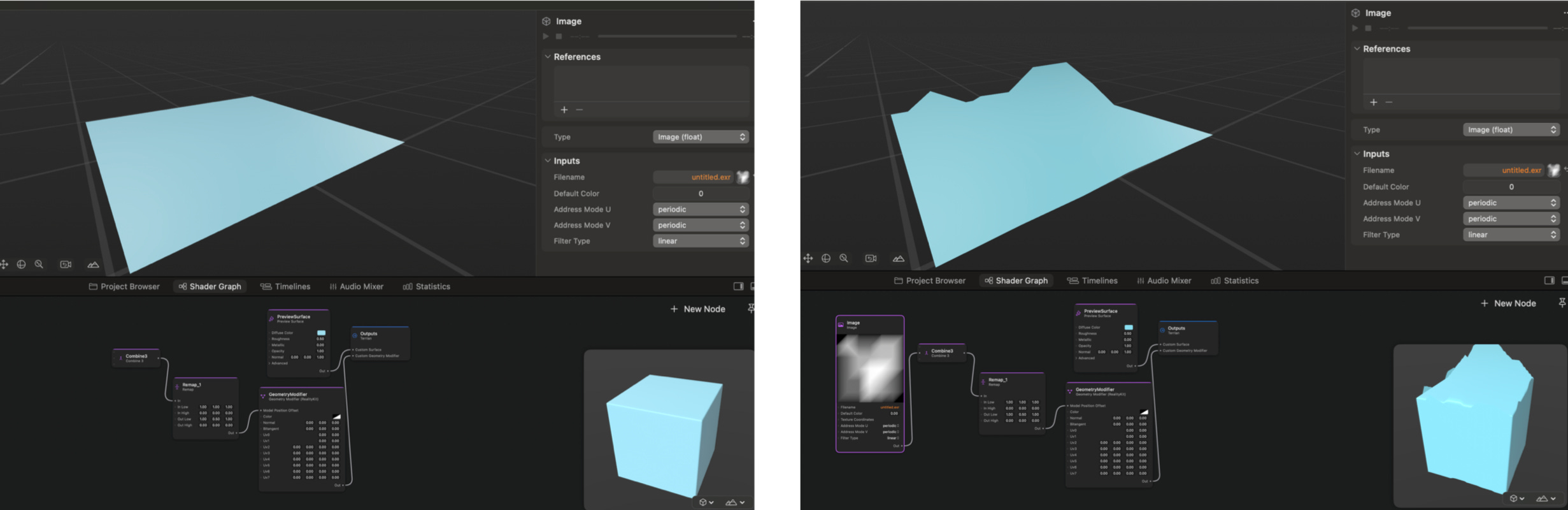
Remember, this "deformation" is just an illusion; it doesn't actually change the model. The model is still a flat plane when you select it. But by combining it with other nodes like mix, you can still get this "deformation" animation effect.
【References】
WWDC24 video RCP: https://developer.apple.com/videos/play/wwdc2024/10102?time=1757
WWDC23 video Materials in RCP: https://developer.apple.com/videos/play/wwdc2023/10202
Geometry Modifier:https://developer.apple.com/documentation/shadergraph/realitykit/geometry-modifier-(realitykit)
Blender Shape Key: https://docs.blender.org/manual/en/latest/animation/shape_keys/shape_keys_panel.html
Blender Bake:https://docs.blender.org/manual/en/latest/render/cycles/baking.html
OpenEXR & What is EXR: https://openexr.com
Blender Export EXR: https://blender.stackexchange.com/questions/191253/how-to-render-height-map-in-blender
【Previous Issues】
Above is just one way to achieve this, and maybe we'll explore some further ways to make morphing happen in the future.
Stay tuned for the update next week~ ; )